
Change language, password, and display settings in Flow
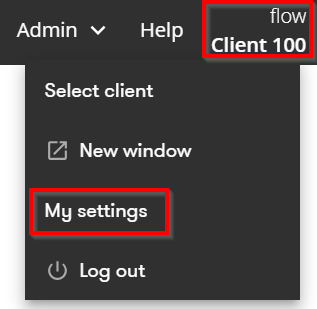
How to open My settings
- Click Client in the top-right corner of Flow.
- Select My settings.
What can you change in My settings?
In My settings, you can change:
- the language in Capitech Flow
- your name and email address
- your password, if you log in using a dedicated Flow link
- how dimensions such as department, project, and employee are displayed
If your organization logs in through Simployer, you cannot change your password in Capitech Flow.
Change your name, email address, or password
Under My user, you can change your name, add or update your email address, and change your password.
How to do it:
- Open My settings.
- Select My user from the menu on the left.
- Make the required changes.
- Click the green Save button.
Change the language
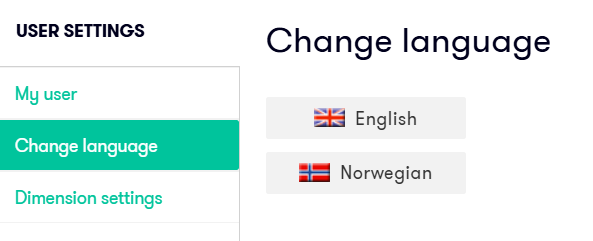
Capitech Flow supports Norwegian and English.
How to change the language:
- Open My settings by clicking Client in the top-right corner of Flow.
- Select Change language from the menu on the left.
- Select Norwegian or English.
Change how dimensions are displayed
In My settings, you can choose how dimensions are displayed in Capitech Flow.
You can display dimensions by number, name, or both.
Dimensions can include:
- department
- project
- time category
- employee
Example:
You can display department and employee using both number and name, while displaying project using only its number.
To use the same display option for all dimensions, click the green Select all button at the top of the relevant column.
Click the green save button to keep your changes.