
Messages in Flow
What are Messages in Flow used for?
Messages in Capitech Flow are used for communication between managers, superusers, and employees.
You can send messages to:
- one employee
- several employees
- all employees in an employee group
- all employees in a department
Employees can also send messages into Flow, for example from My Capitech.
Where can messages be sent?
Messages can be sent in different ways.
My Capitech
When the message is sent to My Capitech, the employee sees the message when they log in to My Capitech.
Terminal
If your organization uses touch terminals, the message can be sent to the terminal.
The employee will then see the message when they log in on the terminal.
SMS
Messages can also be sent as SMS to the mobile number registered for the employee.
SMS costs apply and are invoiced afterwards.
Important information about notifications
When you send or receive a message in Flow, a notification is not automatically sent by email or SMS.
You should therefore check Messages in Flow regularly, for example when you approve hours or absence requests.
Important information before you send a message
Messages cannot be deleted after they have been sent.
You should therefore review the message before sending it, especially if the message contains sensitive information, personal data, or internal comments.
How to send a message to employees
- Go to Messages in the main menu.
- Click on the plus sign on the left.
- Choose where the message should be sent:
- Terminal
- My Capitech
- SMS
- Select recipients.
You can search for recipients by:
- all
- employees
- departments
- employee groups
- Enter subject. Subject is not available when the message is sent as SMS.
- Write the message.
- Choose whether to use read confirmation, if this is available.
- If relevant, choose whether other departments or managers should have access to view the message.
- Click Send.
Read confirmation for messages
Read confirmation shows whether the employee has read the message.
Read confirmation works differently depending on where the message is sent:
Delivery method | Read confirmation |
|---|---|
Terminal | Active by default |
My Capitech | Optional |
SMS | Not available |
When read confirmation is active, an eye icon is shown next to the message or reply.
How to read and reply to messages from employees
You can see unread messages from employees on the Dashboard in Flow.
How to open and reply to a message:
- Go to Dashboard.
- Click Unread messages, or open Messages from the main menu.
- Select the message you want to read.
- The message opens on the right-hand side.
- Write a reply to the employee.
- Click Send.
When you reply to a message sent from My Capitech, the reply is sent back to My Capitech.
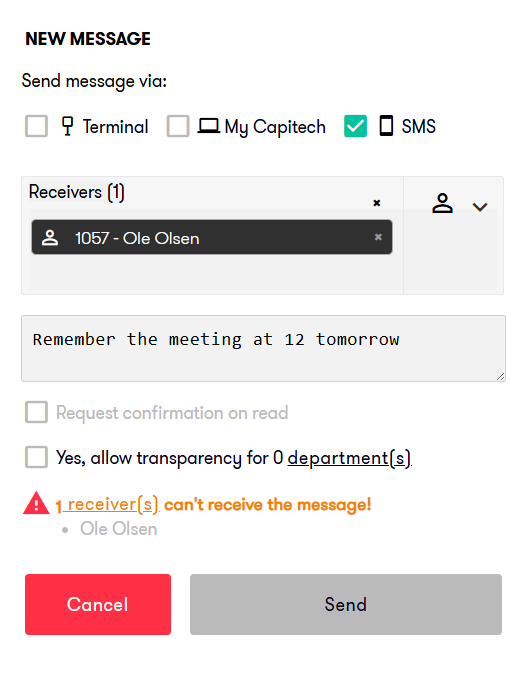
If an employee cannot receive a message
If an employee cannot receive the message, you will be notified in the message window.
Common reasons are:
- the employee's mobile number is missing in the employee register
- the SMS service is not activated
- SMS is not available in your version
- the message is sent to a channel the employee cannot use
If you try to send an SMS without a mobile number registered for the employee, the message cannot be sent as an SMS.
Filters in Messages
You can use filters to find the right messages faster.
Filter | Meaning |
|---|---|
All | Shows all messages that have been sent and received. |
Unread | Shows messages that have been received but not read. |
Incoming | Shows messages that employees have sent in. |
Outgoing | Shows messages that have been created and sent from Flow. |
Transparency | Shows messages where other departments or managers have gained insight. |
You can also use Search field to search for messages.
Frequently asked questions
Where can you find messages in Capitech Flow?
You can find messages by selecting Messages in the main menu. Unread messages can also be shown on the Dashboard.
Can you send messages to multiple employees at the same time?
Yes. You can send messages to one employee, multiple employees, an employee group, a department, or all employees.
Can employees reply to messages?
Yes. Employees can send messages to Flow, for example from My Capitech.
Do you receive email notifications when an employee sends a message?
No. You do not automatically receive email or SMS notifications when a message is received in Flow. You should therefore check Messages regularly.
Can messages be deleted after they are sent?
No. Messages cannot be deleted after they are sent.
Can messages be sent as SMS?
Yes, if SMS is activated and the company has a version that supports SMS. SMS costs are invoiced afterwards.
Why can't an employee receive SMS?
The most common reason is that the employee does not have a mobile number registered in the employee register. Another reason may be that the SMS service has not been activated for your organization.