
Reports in Flow
What can you find in Reports?
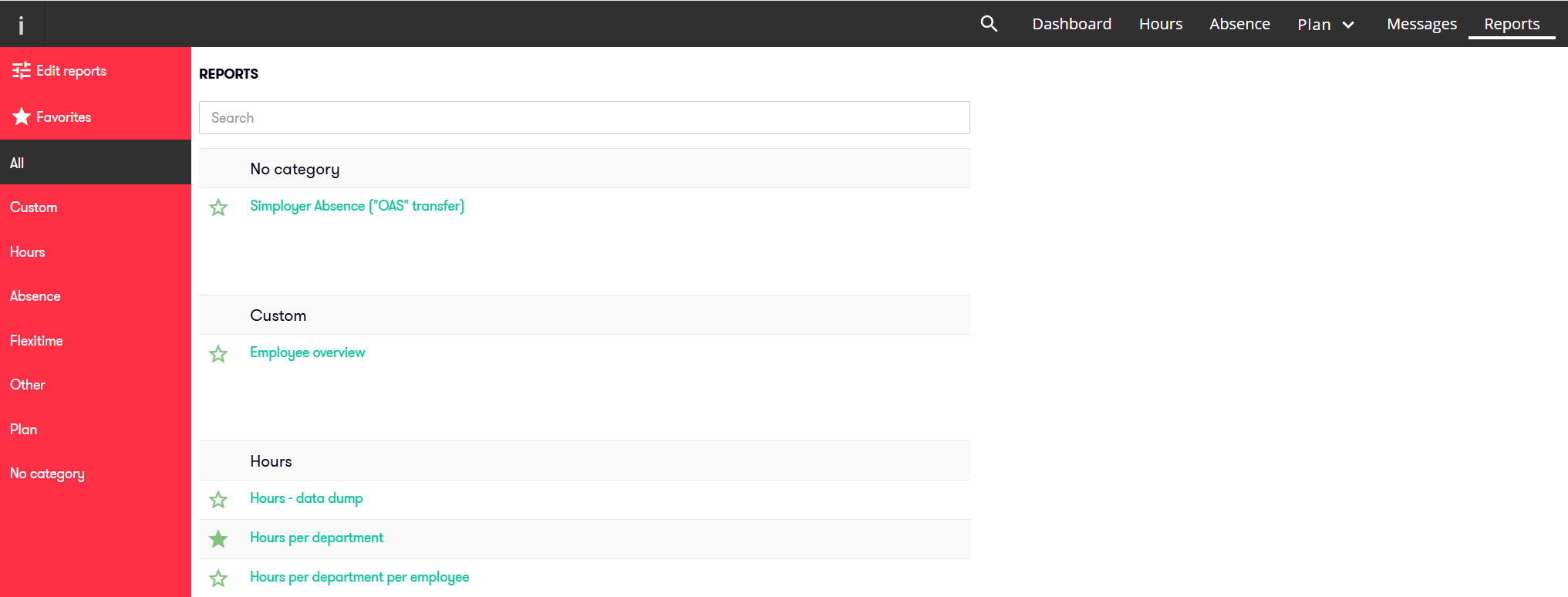
The Reports menu contains reports that provide an overview of hours, absence, departments, and other data from Capitech Flow.
The reports are divided into:
- Standard reports - reports available in Capitech Flow
- Custom reports - reports ordered and created specifically for your organization
- Favorites - reports you have marked as favorites
How to run a report
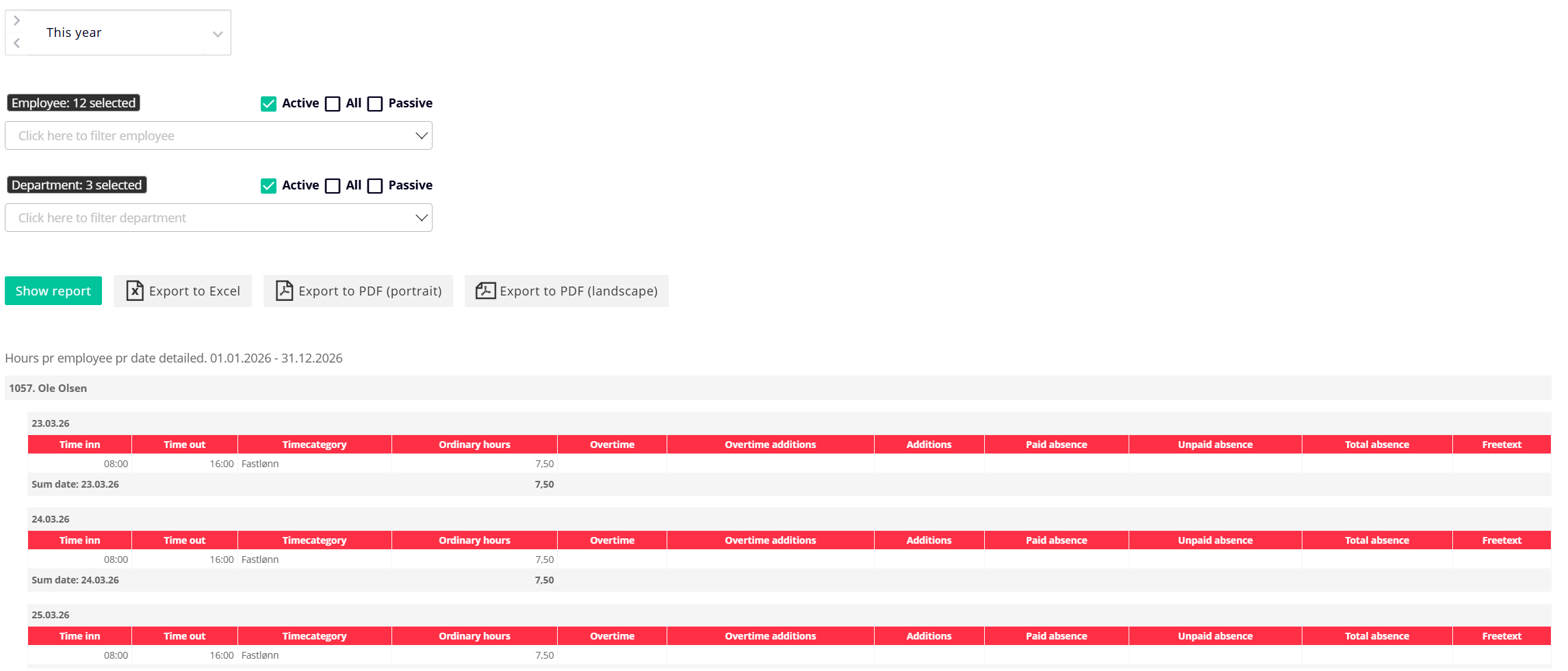
Before running a report, you should select the appropriate criteria.
- Go to Reports in Capitech Flow.
- Select the report you want to use.
- Select a period.
- Select the relevant employees.
- Select one or more departments.
- Run the report.
The report displays data based on your selected criteria. For example, if you select employees and departments, the report will show hours registered for those employees in the selected departments.
Filters and search criteria
Most reports can be filtered.
You can use several search criteria to narrow down the report, such as:
- period
- employees
- employee groups
- departments
- project
- absence codes
The available filters depend on the report you are using.
Export report to PDF or Excel
Reports can be exported from Capitech Flow.
You can usually export reports to:
- PDF in landscape format
- PDF in portrait format
- Excel
This makes it easier to share, save, or continue working with report data outside Capitech Flow.
When Excel asks about file format
When you open an exported report in Excel, Excel may display a standard message stating that the file format is different from the expected format.
This is normal.
Select Yes to open the file. Excel will convert the report from a web format to an Excel format, allowing you to continue working with it in Excel.
Save Reports as favorites
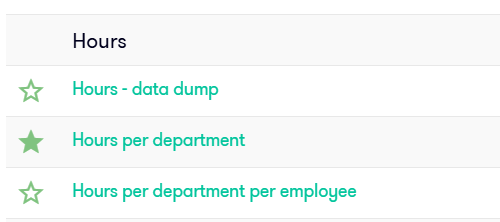
You can save frequently used reports as favorites.
Here's how you do it:
- Go to Reports.
- Find the report you want to save as a favorite.
- Click the star to the left of the report.
The report will then be available under Favorites in the report menu.
Include inactive employees or departments in the report
If you want to retrieve data for employees or departments that have been deactivated, select the appropriate filter.
For example, select:
- All if the report should include both active and inactive employees or departments
- Inactive if the report should include only inactive employees or departments
This is useful when you need historical data or reports that include employees or departments that are no longer active.
Custom Reports
If the standard reports do not meet your needs, you can order a custom report.
To order a custom report, send a description of your requirements to support@capitech.no
You can also attach a template, for example in Excel, showing how you want the report to look.
Custom reports are billable work.
Frequently Asked Questions
Where can you find reports in Capitech Flow?
You can find reports in the Reports menu in Capitech Flow.
What is the difference between standard reports and custom reports?
Standard reports are already available in Capitech Flow. Custom reports are ordered and created specifically for your organization.
Can reports be exported to Excel?
Yes. Reports can be exported to Excel, allowing you to continue working with the data there.
Can reports be exported to PDF?
Yes. Reports can be exported to PDF. Some reports can be exported in both portrait and landscape format.
Why does Excel ask about the file format when I open a report?
This is a standard message from Excel. Select Yes to open the file. Excel converts the report so you can continue working with it.
How do you save a report as a favorite?
Click on the star to the left of the report. The report will then appear under Favorites in the report menu.
How do you include inactive employees in a report?
Select All or Inactive in the filter, depending on whether you want to see both active and inactive or only inactive.
Can you order custom reports?
Yes. You can order customized reports by contacting support@capitech.no. You can also attach a template showing your preferred report layout.