
Approve time registrations
You can approve several time registrations at the same time in Capitech Flow after you have reviewed them. Open Hours, review the registrations you want to approve, then click Approve in the top-right corner.
How to approve multiple time registrations
- Open Hours.
- Find the time registrations you want to check. The example below shows two time registrations. In the top-right corner, Approve 0/2 is shown in green.
- Click a registration to view the details, including calculated hours. After you open a registration, an eye icon appears on the far right. This shows that the registration has been reviewed.
Repeat this for the other registrations you want to approve.
- Click the green Approve button in the top-right corner to approve all registrations you have reviewed.


When a registration is approved, the marker changes from an eye icon to an approval mark.

Tip
You can remove the eye icon from a registration by clicking it.
This is useful if you do not want to approve the registration yet and want to continue working with other registrations.
See who approved a registration
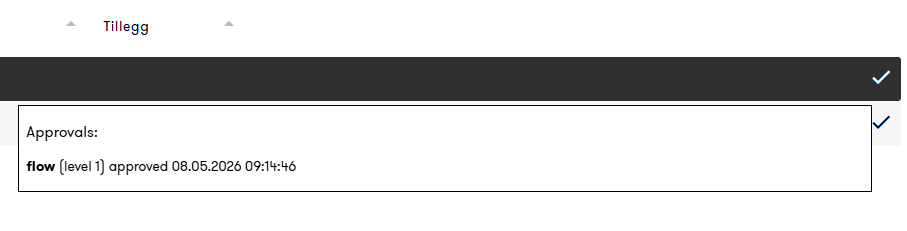
Hover over the approval mark to see:
- who approved the registration
- when the approval was made
Time registrations with warnings
You can filter registrations with warnings by using the warning triangle icon. This shows only registrations that require extra follow-up.
This may include registrations that:
- are missing a check-in or check-out time
- do not have calculated hours
- include overtime
- overlap with absence
- come from a terminal where the time was changed afterwards
If a registration has several warnings, a warning triangle with a plus sign is shown. Hover over the icon to see which warnings apply.
When a registration cannot be approved
A registration cannot be approved if no hours have been calculated.
This is shown with:
- warning triangle
- information text
- red eye icon
To approve the registration, it must have at least one time category.
You can solve this in one of two ways:
- add a time category manually using the plus sign and Create new
- fill in the missing dimensions and save the registration again, so the hours are recalculated
Remove approval
To remove an approval:
- Click the three dots on the left side of the registration.
- Select the cross marked Remove approval.
The approval is then removed, and the registration can be approved again later.