
Views and icons in Hours
View hours that need approval
When you open Hours, the page shows today’s date and the time registrations you have access to see.
Your access may be based on, for example:
- department
- project
- other dimensions
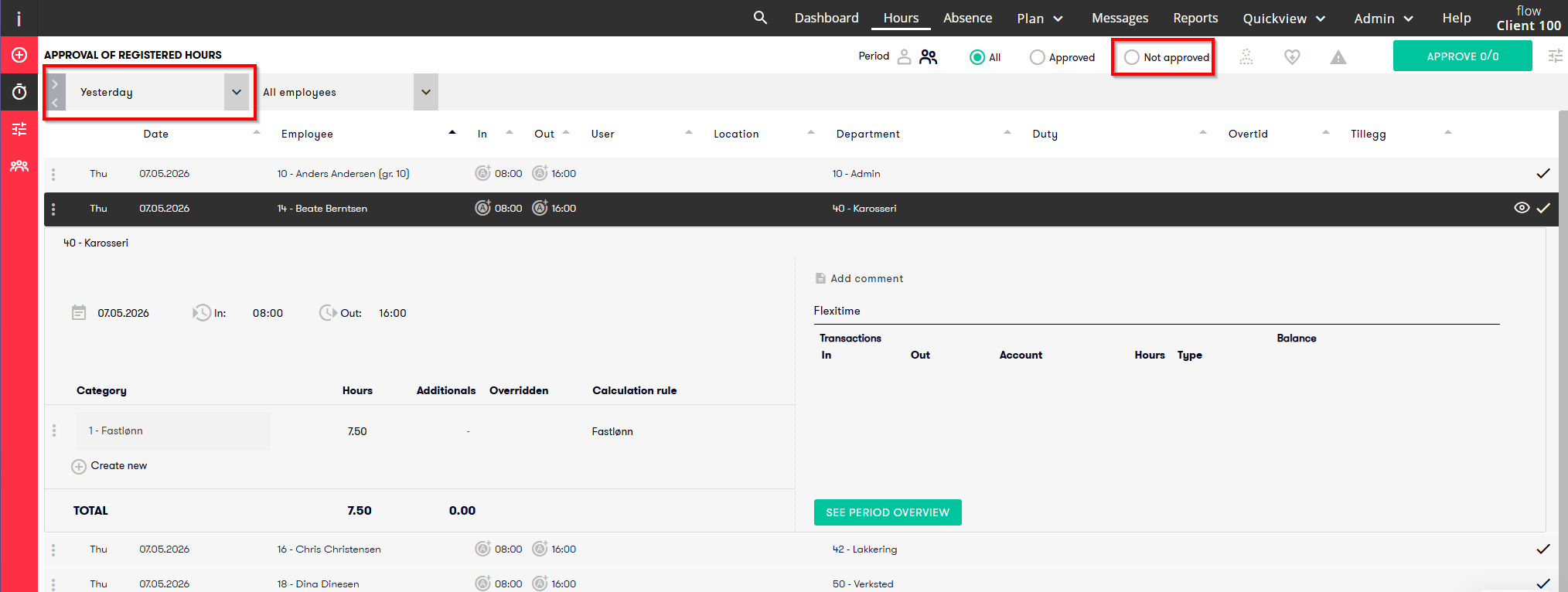
To see hours that still need approval, select for example Yesterday or This week, and set the status to Not approved at the top of the page.
Warning triangle
Click the warning triangle icon in the top-right corner to show registrations that need extra attention.
This may include registrations with:
- overtime
- missing check-in or check-out time
- missing time category
Missing attendance
Click the icon with the outline of a person to see employees who were expected to be at work, but have not registered hours or absence.
Absence view
Click the heart icon to show registered absence together with the time registrations.
This gives you a better overview of the total for the day.
Tip
We recommend showing absence in the time registration view when you check hours. This makes it easier to see whether the working day is covered by registered hours and/or absence.
This is especially useful for short-term absence and graded absence.
You can then quickly see whether hours and absence match normal working hours.