
Details on time registrations
In Hours, you get an overview of employee registrations. Each registration shows a summary of the information, and you can see more details by clicking the registration itself.
Different icons show where the registration comes from
An icon on the time registration shows how the registration was created.
My Capitech | The time registration was registered by the employee in My Capitech. |
Terminal | The time registration was registered on a terminal. |
Mobile Terminal | The time registration was registered on a mobile terminal. |
Manual registration in Flow | The time registration was registered manually by a manager or superuser in Capitech Flow. |
Automatic registration in Flow | The time registration was created automatically based on settings in Capitech Flow. |
Automatic system registration | The time registration was created automatically and set up by a consultant in the back-end system. |


Details about calculation and time of registration
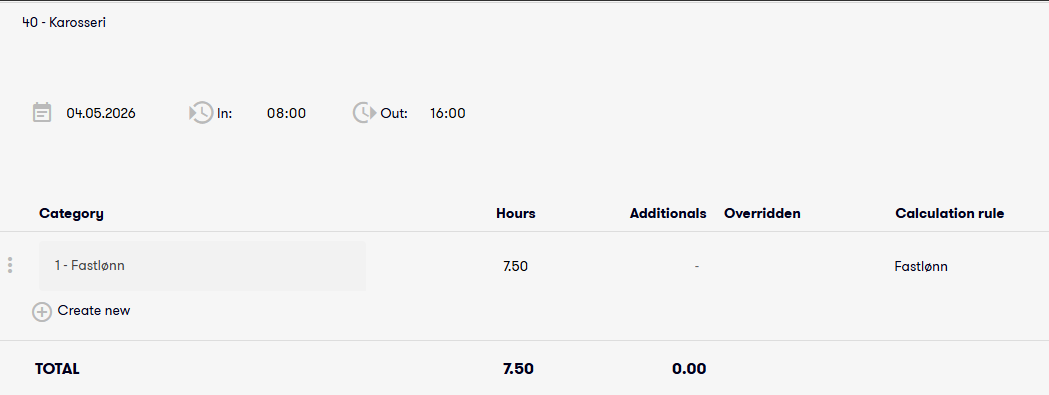
When you open a time registration, more information about the registration is displayed.
You can see, among other things:
- Category
- Number of hours
- Additions
- Override
- Calculation rule
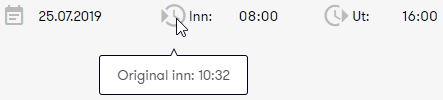
You can also hover your mouse over the clock icons to see when the registration was made.
What the fields mean
Category
Shows which time category the registration is linked to, for example hourly wage.
Number of hours
Shows how many hours have been registered or calculated for the registration. In the example above, the hours are calculated from the times 08:00–16:00, which gives a total of 7.50 hours.
Overridden
Shows whether the registration has been changed manually. If a user has made a manual change, the Flow username is shown here.
Calculation rule
Shows the basis for calculating the hours.
There should be a value in this field. If the field is empty, it means that no calculation has been made. You should then check whether the employee has been added to an employee group. If the employee has already been added to an employee group, contact support.
Comments, flexitime and balance
On the right side of the time registration, you can see comments added by the employee or manager.
If the employee has flexitime calculation, information about movements in flexitime or the time bank linked to the registration is also shown. The total flexitime balance as of today is also shown here.
Summary and totals for the day
You can also see daily summaries for the employee.
These show, among other things:
- total number of hours
- total of pvertime and additionals
- distribution per time category
- any distribution across different times during the day