
Filters in Flow report center
What is a filter in Flow report center?
A filter in the Flow report center is a saved set of report criteria.
A filter can include:
- period
- start and end dates
- employees
- departments
- other report criteria
When you save a filter, you can reuse it the next time you open the report. This means you do not have to select the same period and criteria manually each time.
Selecting dates in the report center
You can select dates in several ways in the reporting tool.
Option | What it means |
|---|---|
Day | Shows the selected calendar day |
Week | Shows the selected calendar week, Monday to Sunday |
Month | Shows the selected calendar month, from the first to the last day of the month |
Year | Shows the selected calendar year, from January 1st to December 31st |
From- and to-date | Used for non-calendar or custom periods |
Select the correct period before running the report
When you run a report in Flow report center, you must select the period that applies to the employees you are reporting on.
This is especially important if your organization has employees with different reporting periods.
Examples of periods can be:
- 01.01-31.12, which follows the calendar year.
- Here you can select This year.
- 01.04-31.03, which is a non-calendar period
- Here you must select the from- and to-date.
The correct period is important for the report to show correct hours, absence, and balances.
How to run a report without a filter
If you do not use a saved filter, you select the criteria manually each time.
Here's how to do it:
- Go to Reports in Capitech Flow.
- Select the report you want to use.
- Select the correct period in the date selector.
- Select relevant employees.
- Select one or more departments.
- Run the report.
This works well if the report is used infrequently or if the period varies each time.
How to create a filter in Flow report center
You can save a filter after selecting the report and search criteria.
Here's how:
- Go to Reports in Capitech Flow.
- Select the report you want to use.
- Select Change at the top of the page.
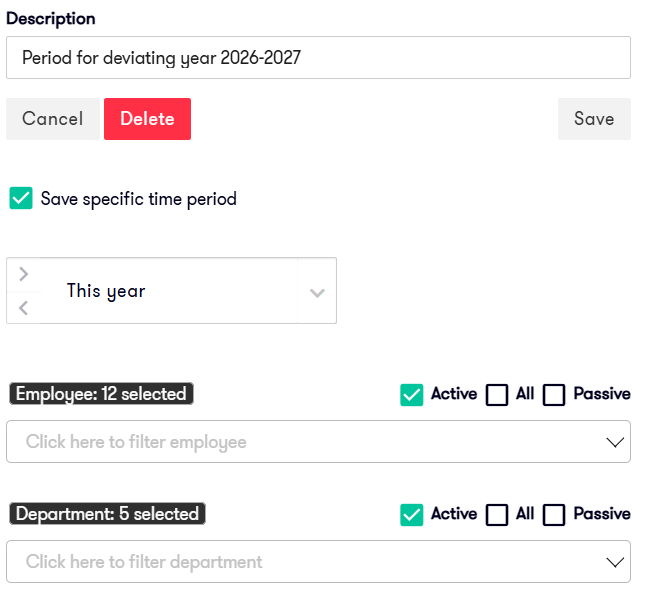
- Give the filter a clear name.
- Select Save specific time period to define a fixed selection, for example This year or This month.
- Select employees, departments, and other relevant search criteria.
- Click Save.

How to use a saved filter
Once you have saved the filter, you can select it directly in the report.
Here's how:
- Open the report in the Flow report center.
- Select the saved filter in the Use values from predefined configuration box.
- Check that the period and report criteria are correct.
- Run the report.
When you select the filter, the report criteria are filled in automatically. This makes it quicker to run reports with non-calendar periods or fixed report criteria.
When is it useful to use filters?
Filters are useful when you often run the same report using the same criteria.
They are particularly useful when you:
- use non-calendar periods
- report on fixed employee groups
- report on fixed departments
- frequently run the same type of report
- want to reduce the risk of selecting the wrong period
Important to check before running the report
Even when you use a saved filter, you should check that the criteria are correct before running the report.
Check in particular:
- that the period is correct
- that the correct employees are selected
- that the correct department is selected
This is important because an incorrect period or selection can result in an incorrect basis for the report.