
Register and correct partial sick leave in Capitech Flow
How to register sick leave
Once you have received the medical certificate from the doctor:
- Go to Absence.
- Click the plus icon (+) in the upper-left corner.
- Select the relevant employee.
- Select the correct absence code for sick leave.
- Enter the period covered by the medical certificate.
- Enter the sick leave percentage, if applicable.
- Click Save.
For 100% sick leave, you normally do not need to make any further adjustments to how the absence is distributed. Check the information and click Save.
Recommended method for partial sick leave
If the employee is, for example, 50% on sick leave, we recommend this method:
- Enter the full period covered by the medical certificate.
- Set Absence percentage to the correct percentage.
- Select Generate reduced days.
- Choose whether the absence should be:
- Absence from start, or
- Absence at end.
- Check the calculation.
- Click Save.
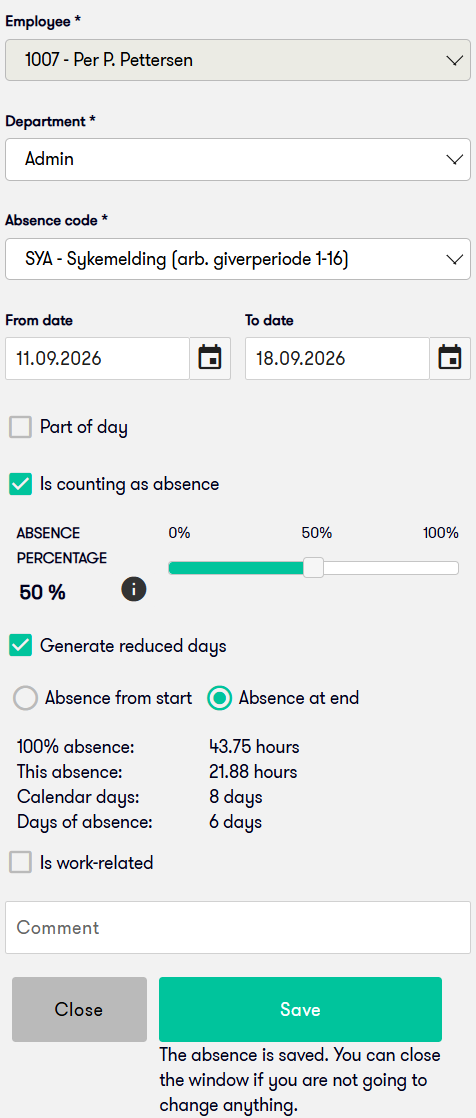
Capitech then distributes the sick leave across the working days in the period based on the selected absence percentage.
In the example with 50% sick leave, you can also see how many hours the period would represent at 100% absence and how many absence hours have actually been calculated using the selected percentage.
Why should you use "Generate reduced days"?
Simply selecting, for example, 50% absence is not enough if Capitech does not know when during the working day the absence should apply.
If you only change the absence percentage and save, you may receive a message stating that the system creates daily transactions as 100% absence and that the times or number of hours must be adjusted to match the specified absence percentage.
This is because the system needs more information about how the partial sick leave should be distributed.
By using Generate reduced days and selecting the start or end of the day, you get a clearer and simpler registration.
When the employee is to work at specific times
For partial sick leave, the manager and employee usually agree when the employee should work and when the employee should be absent.
If you want the registration to reflect this more precisely, you can edit the individual daily transactions and adjust:
- In time
- Out time
- the Hours column
- the Paid column
For sick leave during the employer period, remember to change both Hours and Paid if the number of sick leave hours is changed.
When the employee works full days and has full absence days
Partial sick leave does not necessarily mean that the employee should work part of every day.
For example, the employee may work some full days and be fully absent on other days.
You can then adjust the registration by deleting daily transactions that should not contain sick leave. Click the trash icon on the row for the relevant day.
This allows the absence registration to reflect the actual agreement between the manager and employee.
Follow up partial sick leave against actual working hours
Partial sick leave should be followed up throughout the absence period. The employee may work more or less than originally planned.
We therefore recommend that the manager checks actual registered working hours against registered sick leave regularly, for example once a week.
Go to:
Quickview > Employee overview
Here, you can see information such as:
- registered hours
- registered absence
- planned working hours, if the employee is included in the plan
- the Difference between planned time and registered time/absence
What does "Diff" mean in the employee overview?
If the employee has shifts in the plan, the Diff column shows the difference between planned working hours and what has been registered.
A positive value may mean that the total of worked hours and absence hours is higher than the planned working hours.
If this happens, the manager should check the registrations and reduce the absence hours if the employee has actually worked more than originally planned.
You do not need to change the times if you only need to correct the amount of absence. You can adjust the value in the Hours column for the absence.
Frequently asked questions
How do we register 50% sick leave?
Enter the full period, set Absence percentage to 50%, select Generate reduced days, and choose whether the absence should apply at the start or end of the working day.
Why do we get a message when we only change the absence percentage?
The system then knows how much of the day should be absence, but not when the absence should apply. Use Generate reduced days or adjust the times and hours in the daily transactions.
Can the employee work full days even if the sick leave is partial?
Yes. If this has been agreed, you can adjust the registration so that some days have full working hours and other days have sick leave.
How do we remove sick leave from a single day?
Open the absence and click the trash icon on the daily transaction you want to remove.
What should we do if the employee has worked more than the sick leave percentage indicates?
Check the registered working hours and absence under Quickview > Employee overview. Then adjust the number of absence hours so that the registration matches the actual work performed.
How often should partial sick leave be followed up?
We recommend that the manager checks worked hours and absence regularly, for example once a week.