
Opening flexitime balance in Flow
This is often used when implementing Capitech and needing to transfer previously earned flexitime from another workforce management system or an Excel solution. This ensures the employee has the correct flexitime balance in Flow from the start.
Before entering flexitime balance
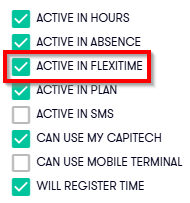
The employee must be set up for flexitime in the system. To have a flexitime balance, the employee must be marked for flexitime in the employee register in Flow under Admin -Employee - Employee.
Enter opening flexitime balance in a new registration
A superuser or manager can enter an opening balance by creating a new time registration on the desired date.
Here's how to do it:
- Go to Hours.
- Click the plus icon for a new registration in the top-left corner.
- Select the employee.
- Enter the date the balance should apply from.
- Fill in the start and end time, for example 00:00–00:00.
- Fill in the other required fields.
- Click Save.
After saving, a registration is added on the selected date without any generated hours. You can now enter the adjustment itself:
- Click into the registration.
- Select a time category:
- Balance plus (Saldo pluss)
- Balance minus (Saldo minus)
- Flexitime adjustment (Justering fleksitid)
- The name of the time category varies from customer, but it will usually have a name containing balance (saldo) or adjustment (justering).
- Enter the number of hours.
- Write a comment, for example: Opening balance as of DD.MM.YYYY.
- Click Save on both the comment and the time registration.
Enter opening flexitime balance on an existing registration
You can also enter an opening flexitime balance on a registration that already exists.
Here's how:
- Open the existing time registration.
- Click Create new.
- Select a time category:
- Balance plus
- Balance minus
- Flexitime adjustment
- The name of the time category varies from customer to customer, but it will usually have a name that includes Balance or Adjustment.
- Enter the number of hours.
- Write a comment, for example: Opening balance as of DD.MM.YYYY.
- Click Save on both the comment and the time registration.
After saving, the balance is added to the employee on the selected date.