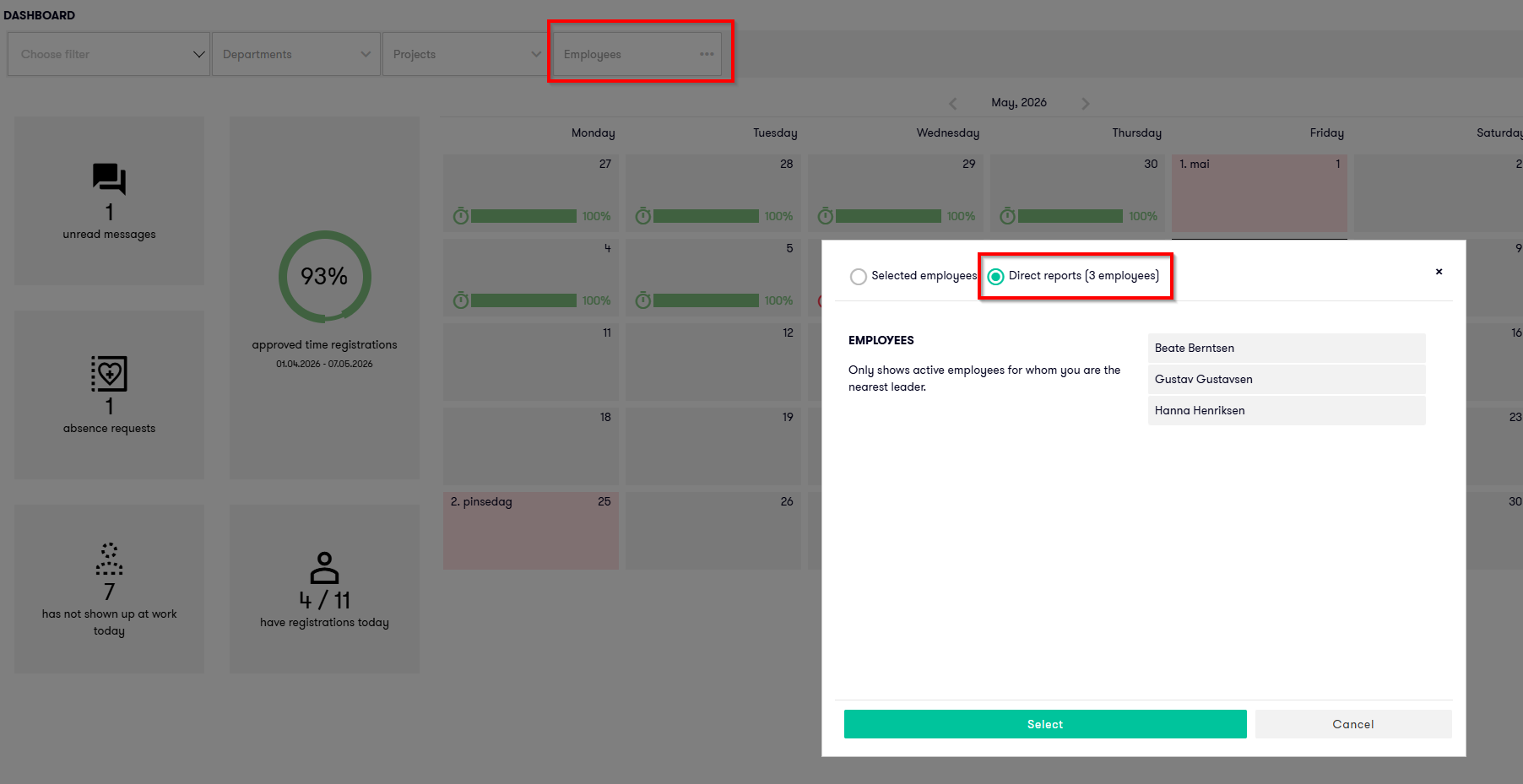
Dashboard in Flow
The dashboard provides you with an up-to-date overview of tasks and events that may require follow-up, for example:
- approval of time registrations
- unread messages from employees
- absence applications
- employees who have not shown up for work
The information you see is filtered based on the access you have as a manager. This may, for example, be based on department, project, or other selected dimensions.
Filter the content in Dashboard
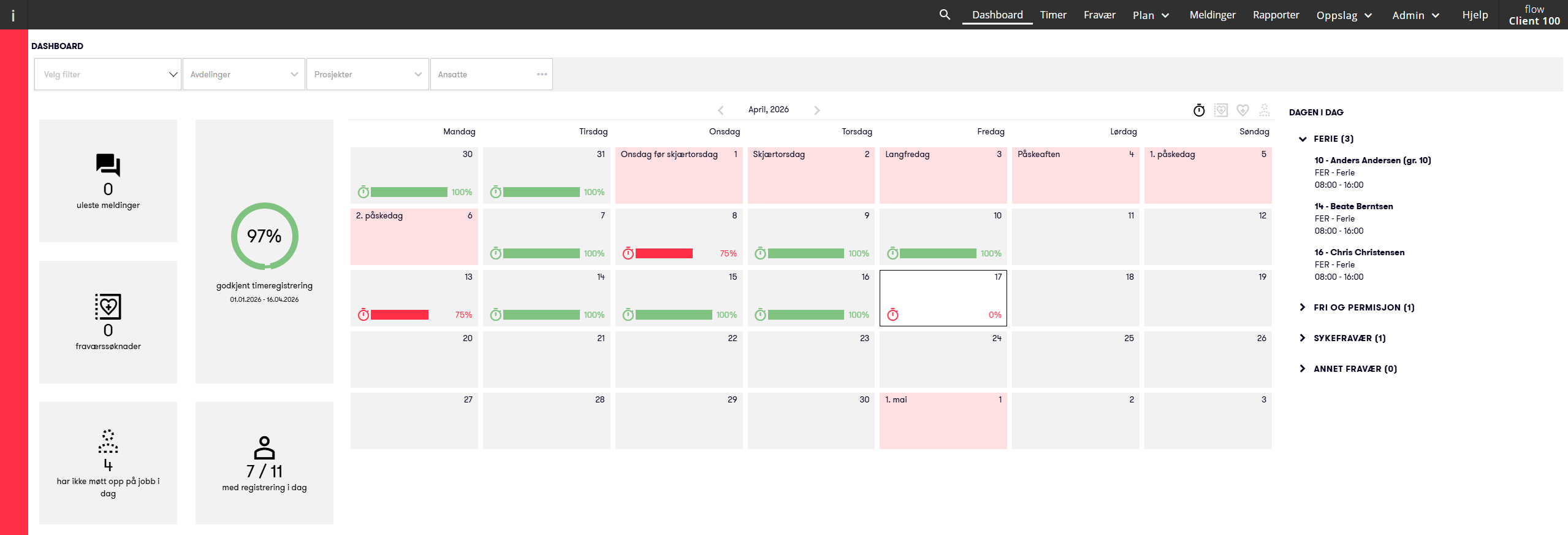
At the top of the page, you can use filters to narrow down the view. You can filter by:
- department
- project
- employees
This makes it easier to get an overview of the employees or areas you follow up.
Icons
The calendar on the dashboard uses icons to show important information. You can click the icons in the top-right corner above the calendar to show more or less information in the view.
Approval rate | The stopwatch shows what percentage of hours has been approved per day. Green means that all hours have been approved. Red means that less than 100% of the hours have been approved. Click the icon on a date to open Hours in the main menu. There you can see details and approve registrations. |
Absence | The heart icon shows that there is approved absence on a day. Click the icon to open Absence and see the details. |
Absence Requests | The framed heart icon shows that there are absence applications that have not been processed. Click the date to open Absence, filtered by absence applications. |
Missing Attendance | The icon with the outline of a person shows that one or more employees were expected to be at work, but are missing registered hours and/or absence. Click the icon to open Hours, filtered by missing attendance. |


Widgets
The dashboard also contains widgets that give you a quick overview and shortcuts to other parts of the system.
Approved time registrations
Shows the percentage of hours approved 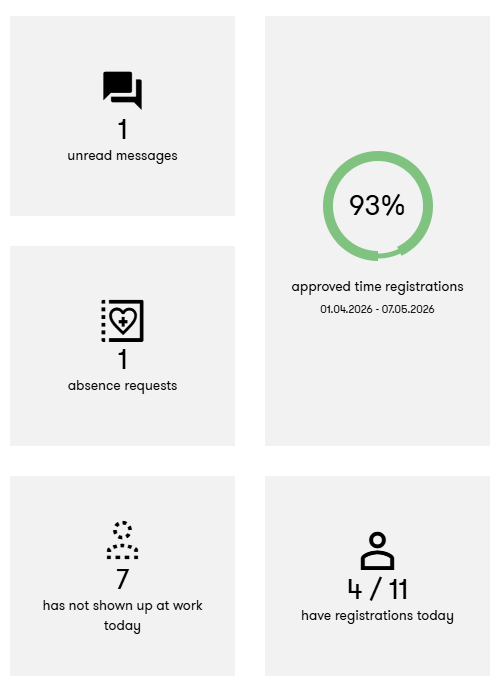
Messages
Shows the number of unread messages from employees. Click the widget to open messages.
Absence applications
Shows the number of absence applications that have not been processed. Click the widget to open Absence, filtered by unprocessed applications.
Not shown up
Shows the number of employees who have not registered hours and/or absence today, but who were expected to be at work. Click the widget to open Hours, filtered by Missing attendance.
With registrations today
Shows how many have registered hours and/or absence today, compared to how many were expected to be at work. Click on the widget to open Hours with a detailed overview.
Easy filtering by employees you manage
If you are set as the manager for employees in the employee register, you can easily select a predefined filter that only shows these employees.
By saving this as a filter, you can use the same view across Dashboard, Hours, Absence, and Operational Plan, and get an efficient overview of your employees.
To activate this, click the employee filter, select Direct reports, and save this as a filter with ypur desired name.