
Extended payroll export
What is extended payroll export?
Extended payroll export is an expanded method for managing payroll exports in Capitech Flow.
Unlike ordinary payroll export, Extended payroll export can include approved time registrations from previous payroll periods if they have not already been exported.
This is useful if hours are registered, corrected, or approved after a previous payroll period has been processed.
Where do you choose between ordinary and extended payroll export?
Whether you use ordinary payroll export or extended payroll export is controlled in client settings.
You can find this under:
Admin - Client Settings - Payroll
Where can you find extended payroll export?
You can find payroll export in Capitech Flow here:
Admin - Integrations - Payroll export.
Create a payroll period
Before you can run an extended payroll export, you must create a payroll period.
Here's how to do it:
- Go to Admin - Integrations - Payroll export.
- Click the plus sign in the upper-left corner.
- Enter:
- year
- period
- from-date
- to-date
- optional From date past period
- Save payroll period
What does From date past period mean?
From date past period is used to include approved time registrations from previous payroll periods that have not yet been exported.
Example:
If you create a payroll period for May, you can use From date past period to include approved, unexported hours from March and April.
This only applies when time registrations meet the requirements for extended payroll export.
When can From date past period be selected?
From date of past period can only be selected based on specific criteria.
The date:
- cannot be earlier than the limit specified under Admin - Client settings - Payroll
- must match the start date for a payroll group in a previous payroll period
- cannot be earlier than the first payroll period processed using extended payroll export
- cannot be earlier than the closing date for hours
This ensures that you do not export the same time registrations more than once.
Select what the payroll period will be used for
When you create the payroll period, you choose what the period should be used for.
Export for payroll
This option specifies whether the period can be used to export variable pay to the payroll system’s payroll processing module.
This option is enabled by default.
Export for absence module
This option specifies whether the period can be used to export absence to the payroll system’s absence module or another external system.
This option is disabled by default.
Payroll period status
When the payroll period is created, its status is set to Active.
The status changes automatically when you:
- generate the payroll journal
- export the file
- or undo a payroll export, if necessary
Add payroll groups to the payroll period
After creating the payroll period, you must add one or more payroll groups.
To do this:
- Click the arrow to the left of the payroll period to expand the row.
- Click the plus sign.
- Select the payroll groups to include.
- Save.
Important:
Only employees belonging to payroll groups added to the payroll period will be included in the payroll export.
Generate the payroll journal
Once the payroll period has been created and at least one payroll group has been added, you can generate the payroll journal.
How to do it:
- Find the relevant payroll period
- Click the green Run button in the payroll export row.
- Review the payroll journal that opens
The payroll journal shows what will be transferred to the payroll system before the file is exported.
The payroll journal can also be generated as a PDF or Excel file.
If you need to correct hours or absence before exporting
If you find errors or missing information in the payroll journal, you can correct the underlying data before exporting the file.
To do this:
- Correct or complete the hours and absence.
- Approve the changes.
- Generate the payroll journal again.
When you generate the journal again, the previous payroll journal is replaced in full by the new journal.
Export the file to the payroll system
Once the payroll journal is ready, you can export the file to the payroll system.
To do this:
- Click the green Open button and check that the payroll journal is correct.
- Click File export in the upper-left corner.
- Save the file in the required location.
- Import the file into the payroll system.
The file is imported into the payroll system and replaces the manual registration of variable pay.
Important about the export file
Do not open and save the export file in Excel.
Excel may change the file format, making the file unreadable by the payroll system.
If you want to review the file in Excel, open a copy. Do not use the copy as the import file in the payroll system.
Closing date for Extended payroll export
When you export a file using extended payroll export, the closing date for hours is automatically set to the day before the Previous period start date.
This means that hours cannot be added, changed, or corrected up to and including the closing date.
Example:
If the Previous period start date is 1 April, the closing date is set to 31 March.
Exported time registrations are locked
Once the payroll export has been completed, the time registrations receive the status Exported.
This locks the time registrations for editing.
Time registrations exported to payroll are locked per employee and per day. If a time registration for an employee has been exported for a specific date, a registration added later for the same date will not be exported because that day is locked.
Undo a payroll export
In special cases, you may need to undo a payroll export.
This may be relevant if:
- the file has been generated and exported
- the hours have been marked as exported
- the file has not been imported and processed in the payroll system
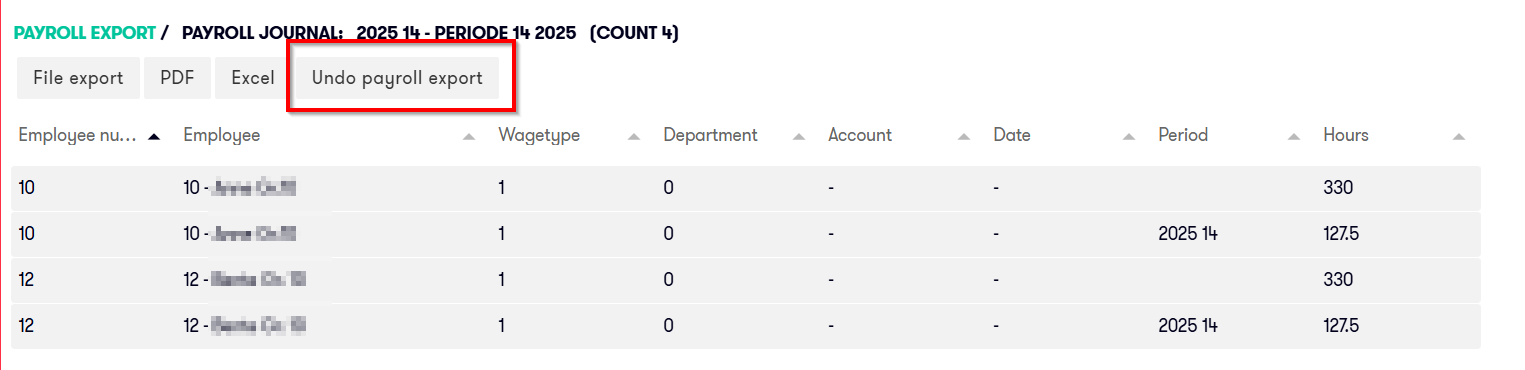
The Undo payroll export feature is available in the payroll journal.
Access to this feature is permission-controlled. This means that only users with the required permissions can undo a payroll export.
What happens when you undo a payroll export?
When you undo a payroll export, the following happens:
- you must first confirm that you want to continue
- the payroll period is reset to Active
- the payroll journal is deleted
- the exported status is removed from the time registrations in the payroll period
- the hours are reopened for correction and approval
- the export file is not deleted automatically
- the closing date for hours is not changed automatically
Important:
You must delete the export file manually. Do not import it into the payroll system after undoing the payroll export.
You must also change the closing date manually if necessary.
After undoing the payroll export, you can correct and approve the time registration data again. You can then generate a new payroll journal and export a new file.
Unlock a time registration for correction after export
In special cases, you can unlock an exported time registration for correction.
Only use this when an exported registration must be corrected for reporting or historical purposes.
How to do it:
- Go to the relevant time registration under Hours.
- Check that the registration is marked as exported.
- Click the three dots on the far left.
- Click the on the padlock to unlock transaction.
- Make the correction.
- Save.
- Approve the registration again if necessary.
If an exported time registration is unlocked and corrected, it will not be exported again.
The registration retains its Exported status.
Any payment or deduction resulting from the correction must therefore be handled manually in the payroll system.
Transition from ordinary to extended payroll export
When transitioning from ordinary payroll export to extended payroll export, you cannot retrieve time registrations from periods previously processed using ordinary payroll export.
This is because ordinary payroll export is date-based and does not assign Exported status to each individual time registration.
If Capitech Flow retrieved hours from previous ordinary payroll periods, the same hours could be exported more than once.
The transition therefore takes place in stages:
- ordinary payroll periods are processed using the previous method
- new periods are processed using Extended payroll export
- later Extended payroll exports can retrieve approved, unexported hours from previous extended payroll periods
Frequently asked questions
What is extended payroll export?
Extended payroll export can include approved, unexported time registrations from previous payroll periods.
What does From Date Past Period mean?
From Date Past Period indicates how far back the system should look for approved time registrations that have not been previously exported.
Why can't I select an older From Date Past Period?
The date may be blocked because it goes further back than the client settings allow, further back than the closing date, or into periods that were processed with ordinary payroll export.
What happens to hours after file export?
Hours that have been exported are marked as exported and become locked for editing.
Can you undo a payroll export?
Yes, if you have the correct permissions. This should only be done if the file has been exported, but not imported and processed in the payroll system.
Is the export file automatically deleted when the payroll export is undone?
No. The export file must be deleted manually. It should not be imported into the payroll system after the payroll export has been undone.
Are corrected exported hours included in a new payroll export?
No. If an already exported time registration is corrected, it retains its exported status and will not be re-exported. Any adjustment must be handled manually in the payroll system.