
Symbols and markings on shifts in the operational plan
How do you show more details on shifts ?
To see more details on shifts in the operational plan:
- Go to Plan.
- Open Operational plan.
- Click the eye icon in the upper right corner of the plan.
- Turn the views you want to use on or off.
The viewing options control which information is shown on the shifts in the plan.
What do the markings on shifts mean?
shifts in the operational plan can have different colors, lines, and symbols. These show the status or extra information about the shift.
Details on shifts in operational plan | What does it mean? |
|---|---|
The employee has absence on the same day. | |
A substitute need has been reported for the shift, but the shift has not been assigned. | |
The shift is available and has no employee assigned to it. | |
No substitute needed has been selected. | |
An employee has stepped in as a substitute. | |
The employee has a shift in another department than the one you are currently viewing. |
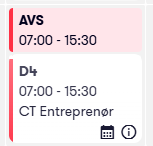




Red line: absence on the same day
When a shift is marked with a red line, it means that the employee has absence on the same day.
The absence may apply to:
- full day
- part of the day
This makes it easier to see which shifts may be affected by absence.
Blue line: substitute needed
When a shift is marked with a blue line, it means that a substitute need has been reported for the shift.
If the shift still has a blue line, the shift has not yet been assigned to a substitute.
If a number is shown on the shift, the number shows how many employees have requested the shift.
Example:
The number 1 means that one employee has requested the shift.
Blue dotted line: available planned shift
When a shift has a blue dotted line, it means that no employees are assigned to the shift.
This is an available planned shift that can be assigned to an available employee.
Greyed out and crossed out: no substitute needed
When a shift is greyed out and crossed out, it means that no substitute needed has been selected.
This is often used when an employee has absence, but there is no need for someone else to cover the shift.
Green circle: employee has stepped in as a substitute
When a green circle is shown in the left corner of the shift, it means that an employee has stepped in as a substitute.
This shows that the substitute need has been handled for the shift.
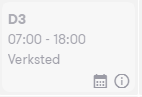
Grey shift without lines: shift in another department
A grey shift without lines means that the employee has a shift, but the shift belongs to another department than the one you are currently viewing.
This may be shown when you filter or view the plan for one specific department.