
Link a user to Simployer login
Before you start
The user must first be created in Capitech Flow.
Create the user as described in the article Create a new user or Copy an existing user.
How to link the user to Simployer login
- Go to Admin - Security - Users.
- Open the user you want to link to Simployer login by clicking their name shown in green.
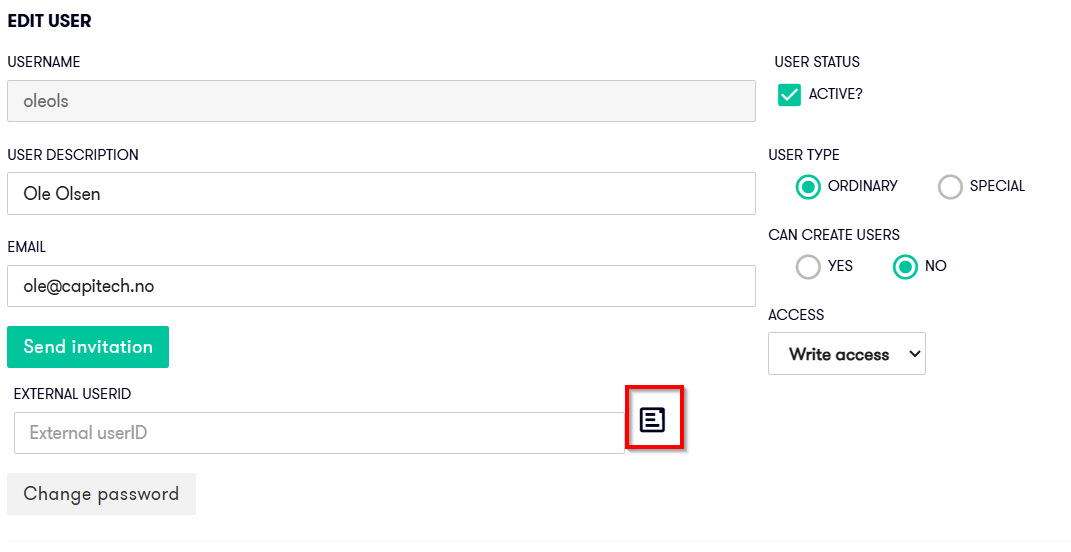
- Find the External user ID field.
- Click the black icon next to the field.
- Search by name and select the correct Simployer user account from the list.
- Save the changes.
The list displays user accounts for people who have been synchronized from Simployer.
To make it easier to select the correct account, only Simployer user accounts that are not already linked to a user in Capitech Flow are displayed.
Who needs a user in Flow Admin?
You create users in Flow Admin for managers, superusers, or others who will perform tasks in Capitech Flow, such as:
- approving hours
- managing absence
- creating plans
- administering users or access
Employees who will only use My Capitech or a terminal do not need to be created as users under Flow Admin - Users.
These employees are transferred from Simployer together with their Simployer user accounts.
Frequently asked questions
Do all employees need to be created as users in Flow Admin?
No. Employees who only use My Capitech or a terminal do not need to be created as users in Flow Admin.
Why is the Simployer user account not displayed in the list?
The account may already be linked to another user, or the person may not have been synchronized from Simployer yet. Contact support@capitech.no if you need help synchronizing the person.