
Filters, views, and grouping in the operational plan
What are filters and views used for?
Filters, views, and grouping are used to make the operational plan easier to work with.
This is especially useful when you have many:
- employees
- shifts
- departments
- projects
- competencies
- available shifts
- shifts requiring substitutes
By using filters and grouping, you can find the correct part of the plan faster.
Filters in operational plan
In the standard filter, you can filter shifts based on information added to the shifts.
You can filter by, among other things:
- department
- project
- competence
- shifts with reported needs in the operational plan
This makes it easier to display only the shifts that are relevant to what you are working on.

Filter by employees and employee groups
You can also filter by employees and employee groups
Here you can:
- select one employee
- select multiple employees
- select an employee group
- quickly select all employees belonging to an employee group
If you also filter by department, project, or other choices, only employees who are selected in the employee filter and have shifts that match the other filter choices are shown.
How to reset filters
If a filter is set in the operational plan, you can remove the filter using the Reset option in green text to the right of the filter selections.
Use Reset when you want to return to full view without active filters.

Important to remember when using filters
Filters only change what you see in the operational plan.
If you have an active filter and add shifts for other employees, departments, or projects than what the filter shows, the shifts may look like they disappear.
The shifts are not gone. They are still in the operational plan, but they are not shown in the filtered view.
To see the shifts again, you must either:
- update the filter
- change the filter selections
- reset the filter
Period view in the operational plan
At the top of the plan view, you can select which period you want to see.
You can usually choose between:
- 1 week
- 4 weeks
- month
The weekly view retrieves the fewest shifts and is therefore the fastest to work with. The four-week view and month view give you a better overview of longer periods.

Weekly view
The weekly view shows the shifts in the selected week.
In addition, the weekly view can show a shadow shift for:
- Sunday in the previous week
- Monday in the next week
This helps you see what happened just before the selected week, and what comes right after the selected week.
Navigate back and forth in the plan
You can navigate back and forth in the plan with the arrows next to the dates. 
- weekly view
- four-week view
- month view
If you need to go far forward or back in time, you can use the calendar instead of navigating week by week.
Here's how to do it:
- Click on the calendar.
- Go to the desired period.
- Click on the Monday of the week you want to view.
- The plan jumps directly to the selected week.
Employee perspective and shift perspective
In the operational plan, you can choose between employee perspective and shift perspective
Perspective | What does it show? | When is it suitable? |
|---|---|---|
Employee perspective | Employees are shown on the left, with the shifts they work in the selected period. | When you want to view the plan per employee. |
Shift perspective | Shifts are shown on the left, with employees working on those shifts. | When you want to see who covers different shifts. |
You switch between employee perspective and shift perspective in the view menu at the top right of the page.

Employee perspective
In employee perspective, employees are shown on the left in the plan.
For each employee, you see which shifts the person has in the selected period.
This is suitable when you want to check:
- working hours per employee
- which days an employee works
- absence for an employee
- whether an employee has the correct shifts
Shift perspective
In shift perspective, the shifts are displayed on the left side of the plan.
Then you can see which employees are assigned to the different shifts.
This is suitable when you want to check:
- who covers a specific shift
- if a shift is missing an employee
- available shifts
- substitute needs
- staffing per shift type
Grouping the view
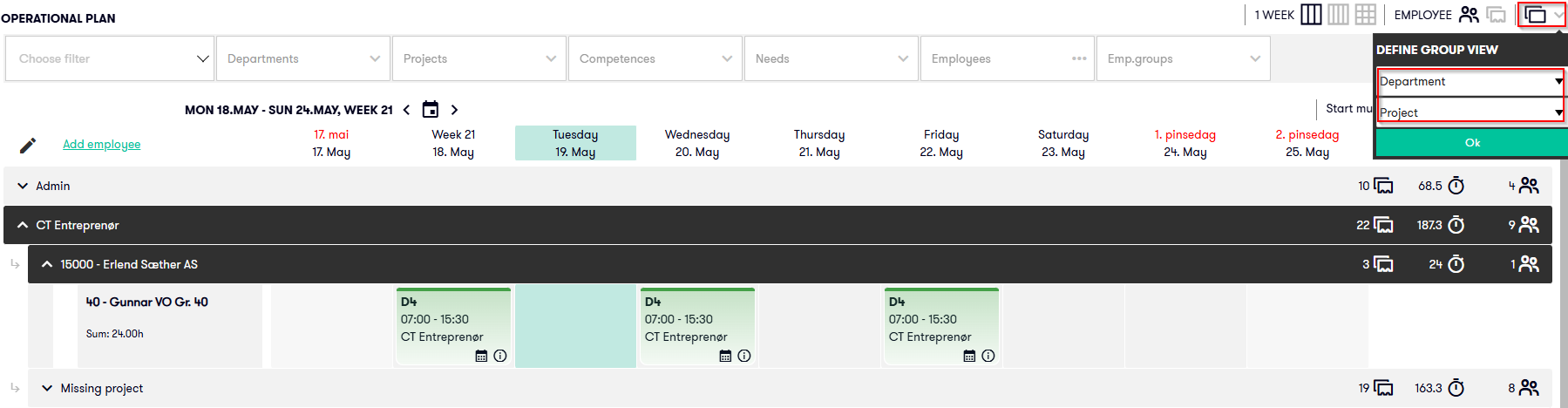
You can group the operational plan to get a better overview.
If you display all employees or shifts without grouping, you will get a regular list. The list still takes active filters into account.
For a better overview, you can group the view on up to two levels.
Examples of grouping:
- department
- project
- department and project
- other available dimensions
What do the groups show?
Each group has a summary for the selected period.
The summary can show:
- number of shifts
- number of hours
- number of people
If there are absences or available shifts requiring a substitute, the group can show a red alert.
This helps you see where follow-up may be needed.
To see the contents of a group, click the arrow to expand the group.
Forced grouping in the operational plan
For customers with many employees and large amounts of data, grouping in the operational plan may be forced.
This means that you can still see grouping, for example by department, even if you have tried to remove grouping from the view. This is done to make sure the operational plan loads faster and works better when there are many shifts, employees, and lines in the same view.
Grouping helps Capitech Flow retrieve and show the plan more efficiently. Without grouping, the operational plan may become slower for organizations with large amounts of data.
Viewing options
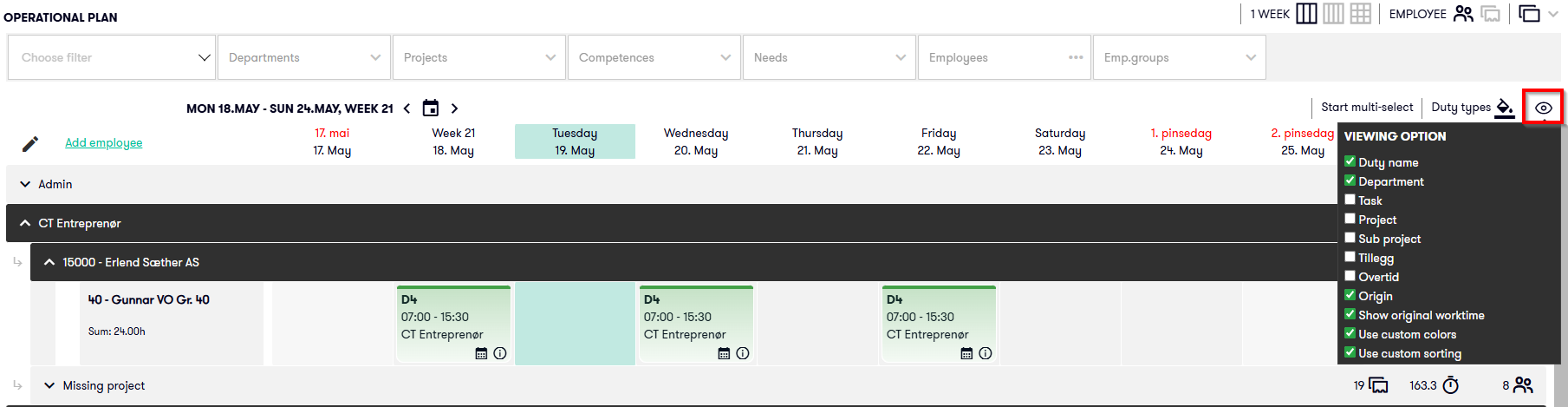
You can find display options by clicking the eye icon in the upper right corner of the plan.
There you can choose what you want to see in the operational plan.
Common display options are:
Option | Explanation |
|---|---|
Show original worktime | Shows original working hours in addition to current work hours for adjusted shifts. |
Use custom colors | Shows colors on shifts from the selected source. |
Use custom sorting | Allows you to control the order in which employees are displayed. |
Show original worktime
The option Show original worktime shows both original and current working time for shifts that have been changed.
This is useful if you want to see which shifts have been adjusted from the original plan.
Use custom colors
The option Use custom colors shows colors on shifts based on the selected source.
You select the color source by clicking on the color icon to the left of the viewing options.
This can make it easier to distinguish between different types of shifts, departments, projects, or other dimensions, depending on the color options you have available.
Use custom sorting
The option Use custom sorting enables fields for specifying the desired sorting of employees.
To change the sorting, click the pencil icon to the top left of the employees.
This is useful if you want employees to be displayed in a specific order in the plan.
Frequently asked questions
What can you filter by in the operational plan?
You can filter by department, project, competence, needs, employees, and employee groups, among other things.
Why does a shift disappear when you have a filter on?
The shift is not gone. It is simply not displayed because it does not match the filter. Update or reset the filter to see the shift again.
How do you reset the filter in the operational plan?
You use the button Reset to remove active filters.
What is the difference between employee perspective and shift perspective?
In employee perspective, you see employees on the left and their shifts in the plan. In shift perspective, you see shifts on the left and which employees are working on the shifts.
When should you use week view?
Use week view when you are working with daily operations and want the plan to load faster.
When should you use four-week view or month view?
Use four-week view or month view when you need an overview of a longer period.
What does grouping mean in the operational plan?
Grouping means that the plan is divided into groups, for example by department or project. The groups can show a summary of shifts, hours, and people.
What does a red warning mean in a group?
Red alert means that there are absences or available shifts with needs that may require follow-up.
Where do you find display options?
You can find display options by clicking on the eye icon in the upper right corner of the plan.