
Create a new user
Prerequisites
To create or edit users, you must have access to Capitech Flow and permission to create users.
The Can create users field on your user account must be set to Yes.
How to create a new user
- Go to Admin - Security - Users.
- Click the plus icon in the upper-left corner to create a new user.
- Enter the relevant user information, such as the username, description, and email address.
- Select Ordinary as the user type.
- Select the correct access.
- Add roles, user access, and an approval level if required.
- Click Save.
If the user will be a superuser who can create other users, the Can create users field must be set to Yes.
User details
Field | What is it used for? |
|---|---|
Username | The name the user enters to log in to Capitech Flow. The username cannot contain Æ, Ø, or Å. It is used for direct login, but not for login through the Simployer Portal or Microsoft Entra ID, formerly Azure AD. |
User description | The user’s name, usually their first and last name. |
The user’s email address. It is used for purposes such as invitations and password recovery. | |
Send invitation | Sends an email containing a link that allows the user to create their own password. The button is displayed when the user has an email address. This is for organizations that has direct login, and does not work for those with login throug Simployer Portal or Microsoft Entra ID. |
External user ID | Used for login through the Simployer Portal or Microsoft Entra ID, formerly Azure AD. If you use the Simployer Portal, select the black icon on the right and search for the person’s name. If you use Microsoft Entra ID, enter the user ID. This is normally the user’s email address, for example trine@capitech.no. |
User type | Select Ordinary. This is the standard user type for managers, superusers, and administrators. Special is used for purposes such as API users. |
Can create users | Normally set to No. Select Yes if the user is a superuser who needs to create other users. |
Access | Select whether the user should have read or write access. Managers and superusers normally have Write access. Someone who only needs to retrieve reports and will not perform tasks in Flow can have Read access. |
Change password | Can be used to set a password manually, but we normally recommend using an invitation or the forgotten password option instead. This is only used for users who log in to Flow through a company-specific link, and does not work for those with login throug Simployer Portal or Microsoft Entra ID. |
User roles
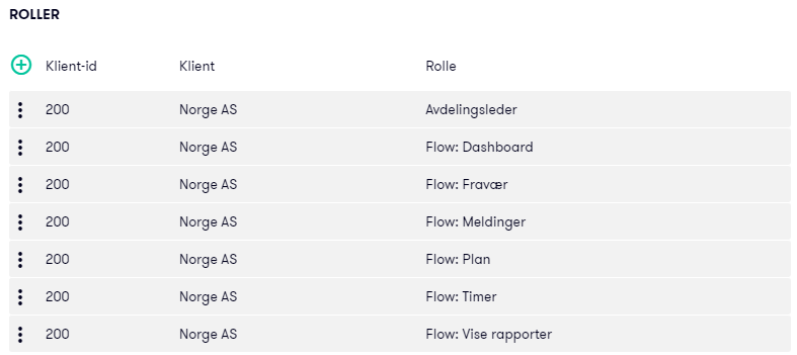
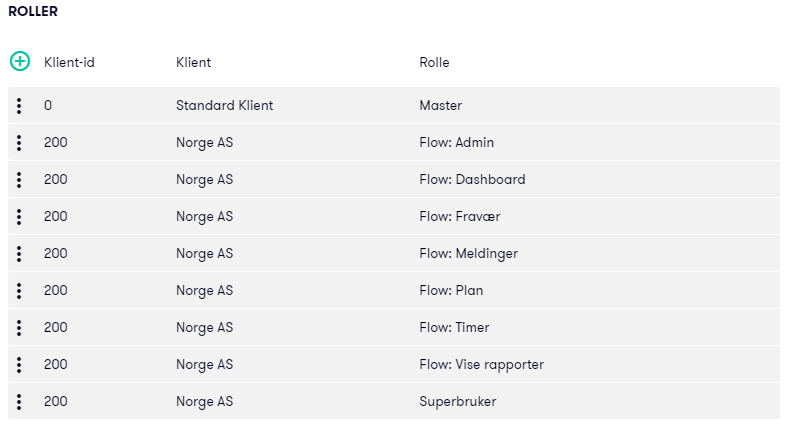
User roles determine which menus and features the user can access in Flow, such as Hours, Absence, and Dashboard.
Click the plus icon to add a role.
Example image showing role access for a department manager:
Example image showing role access for a superuser:
Data access
Data access is used when a user should only have access to specific departments, projects, or other dimensions.
Click the plus icon to add data access.
If you do not add restricted data access, and leave the field blank, the user will have access to all departments, projects, and other dimensions covered by their roles.
Common restrictions include:
- department
- project
- absence codes
For example, if a manager is given access to four absence codes, they will not see absence registered with any other absence codes.
Time approval access
Add an approval access if the user needs to approve hours.
Click the plus icon to add an approval access for each client.
If you only use one approval level, you will normally select Level 1.
If you use multiple levels, Level 2 is usually the manager closest to the employee, while Level 1 is the highest level and the basis for transfer to payroll. A user with Level 1 approval access has to approve hours, in order to export the employees hours to payroll.
Invitation for a new user
When you create a user with an email address, you can send an invitation by email.
The invitation contains a link that allows the user to set their preferred password.
The user can also select Forgot password on the Capitech Flow login page.
This only applies for those using a direct link to Flow, and does not work for those with login throug Simployer Portal or Microsoft Entra ID.
Tips
For a new manager who needs the same access as an existing manager, it is often quicker to copy an existing user than to create the user manually, step by step.
Frequently asked questions
What is required to create a user?
You must have access to Capitech Flow and permission to create users. The Can create users field must be set to Yes.
What is the difference between roles and user access?
Roles determine which modules the user can access. User access determines which departments, projects, or other dimensions the user can view and work with.
Do all users need an approval level?
No. An approval level is only required if the user needs to approve hours.
How does a new user receive a password?
You can send an invitation by email, or the user can select Forgot password on the login page. This only applies when logging in directly through a Flow link. For external login, the password is managed in your external system.
Should managers have read or write access?
Managers and superusers normally have Write access so they can create, edit, and process data in Flow.