
Deactivate a user
This article explains how to deactivate a user in Capitech Flow. When a user is deactivated, they can no longer log in to Flow.
How to deactivate a user
- Go to Admin - Security - Users.
- Find the user you want to deactivate.
- Open the user by clicking the user description shown in green.
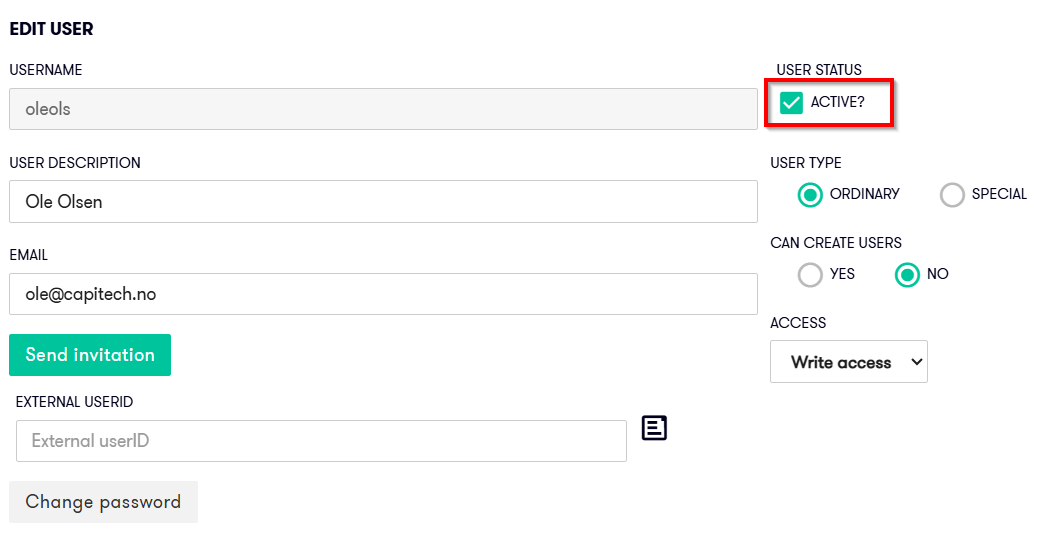
- Clear the Active checkbox.
- Click Save.
The user is now deactivated and no longer has active access to Capitech Flow.
When should you deactivate a user?
You should deactivate users who no longer need access to Flow, for example when a manager leaves the organization or changes roles.
Tips
You can use the Last login column to see when the user last logged in. This can help you identify users who no longer use the system.
Frequently asked questions
Is the user deleted when you clear the Active checkbox?
No. The user is deactivated, not deleted. You can find the user under inactive users.
Can a deactivated user be reactivated?
Yes. Open the user, select Active again, and save your changes.
Does the user lose access immediately?
Yes. When you clear Active and save your changes, the user no longer has active access to Capitech Flow.