
Logging in to Capitech with a customer-specific link
Who does this apply to?
This applies if you log in to Capitech Flow or My Capitech using a dedicated link to your organization’s solution.
This is relevant if your organization uses Capitech but does not log in through a service such as Simployer Portal.
How to log in to Capitech Flow
Capitech Flow is usually used by managers, superusers, administrators, and other users with access to Flow.
To log in:
- Open the link provided by your organization.
The link is usually: customername.capitech.no - Enter your username and password.
- Click Log in.
Usernames in Capitech Flow may vary between organizations. If you are unsure what your username is, contact your organization’s superuser.
If you have forgotten your Capitech Flow password
If you have forgotten your Capitech Flow password, click Forgot password on the login page.
An email will be sent to the email address registered on your user account.
If you do not receive the email, this may be because:
- your user account does not have an email address
- the email address is incorrect
- the email was sent to your spam folder
If the email address is incorrect or missing, your superuser must enter the correct email address in the user menu.
The superuser can also set a new password for users or send a new invitation.
How to log in to My Capitech
My Capitech is usually used by employees.
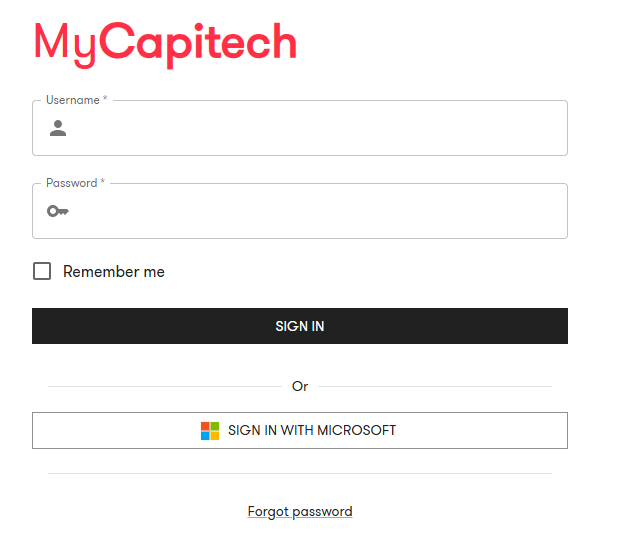
To log in:
- Open the link to My Capitech.
The link is usually: customername.capitech.no/mincapitech - Enter your employee number as your username.
- Enter the password you created.
- Click Log in.
For employees logging in to My Capitech, the employee number is the username.
If you have forgotten your My Capitech password
If you have forgotten your My Capitech password, click Forgot password on the login page.
An email will be sent to the email address registered on your employee profile.
If you do not receive the email, this may be because:
- your employee profile does not have an email address
- the email address is incorrect
- the email was sent to your spam folder
If the email address is incorrect or missing, contact your organization’s superuser. The superuser can update the email address in the employee register.
The superuser can also set a new password for you or send a new invitation.
If your organization uses Microsoft login
Some organizations have enabled Microsoft login for Capitech Flow or My Capitech.
If Microsoft login is enabled, you will see a Microsoft Sign in button on the login page.
If you do not see the Microsoft button, this usually means that Microsoft login has not been enabled for your organization.
Save the link as a shortcut
You can save the link as a shortcut in your browser.
For example, you can:
- bookmark the link in your browser
- add a shortcut to your desktop
- pin the link as a favorite
This makes it easier to open Capitech Flow or My Capitech the next time you log in.
Frequently asked questions
What is my username in My Capitech?
Your username in My Capitech is your employee number.
What is my username in Capitech Flow?
Usernames in Capitech Flow may vary between organizations. Contact your organization’s superuser if you are unsure.
What should I do if I have forgotten my password?
Click Forgot password. An email will be sent to the email address registered on your account.
What should I do if I do not receive an email after clicking Forgot password?
Check your spam folder first. If you still cannot find the email, your email address may be incorrect or missing. Contact your organization’s superuser.
Who can change my email address?
For employees using My Capitech, the superuser must update the email address in the employee register. For users and managers using Capitech Flow, the superuser must update the email address in the user menu.